






HP Sprocket Panorama Printer – Cleaning Sheet Instructions
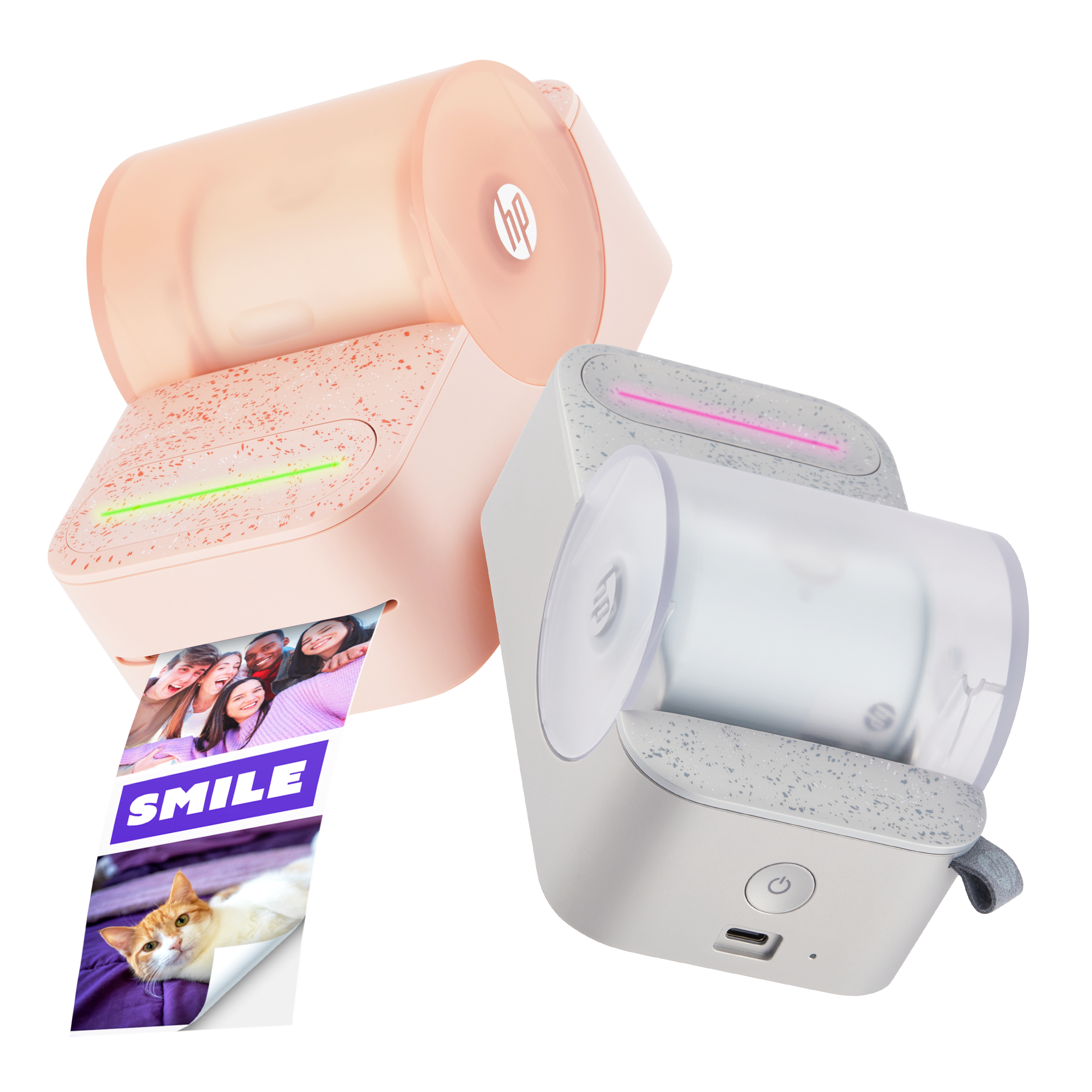
This document is for HP Sprocket Panorama Printer.
To start cleaning your printer, remove the printer from the box and locate the cleaning sheet.
Note: Before each new roll, use the cleaning sheet. Keep the cleaning sheet for future maintenance.
Clean the Printer
- Press the power button to turn on the printer.
Note: Connect the USB-C cable to the printer to charge it if needed.

- Remove the cover and take out the paper roll holder.

- Feed the edge of the included cleaning sheet into the slot until it hits the stopper.
Note: Make sure to read the instructions on the cleaning sheet to know which side should face up.
- Place the cover back on the printer until it clicks in place. Then, the cleaning sheet will automatically start to feed.

- Once the cleaning is done, remove the cleaning sheet from the printing slot.
Note: Use the cleaning sheet after every 10 – 15 prints or if streaking appears in the photos to ensure the best print quality.


Still need support?
Get personal help from our support team by visiting the Contact Us page.
Contact UsRegister your product.
Secure your product with easy access to help, updates, and documentation.
Product Registration
 Please enter a valid email.